Short answer: you can make shop-ready product photos from one decent photo of your product. Attach it to an image model that edits photos (Nano Banana, GPT Image or Flux Kontext) and ask for one of two things: a packshot on pure white for the catalogue, or a lifestyle scene that shows the product in use. In both, add a hard rule that the product stays exactly as supplied, label and lettering included.
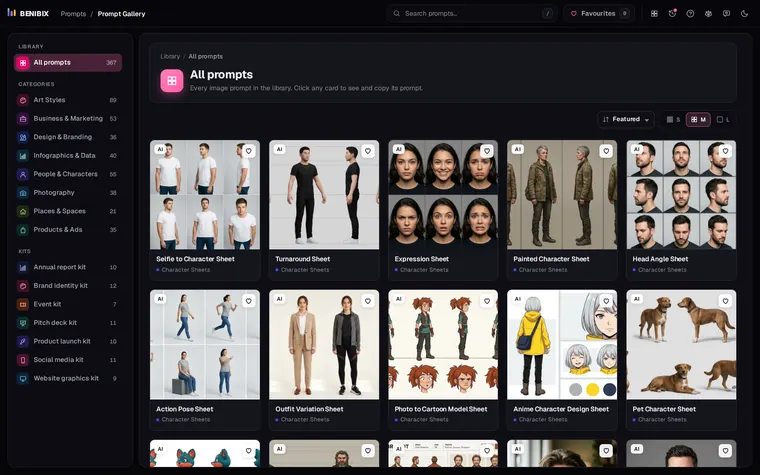
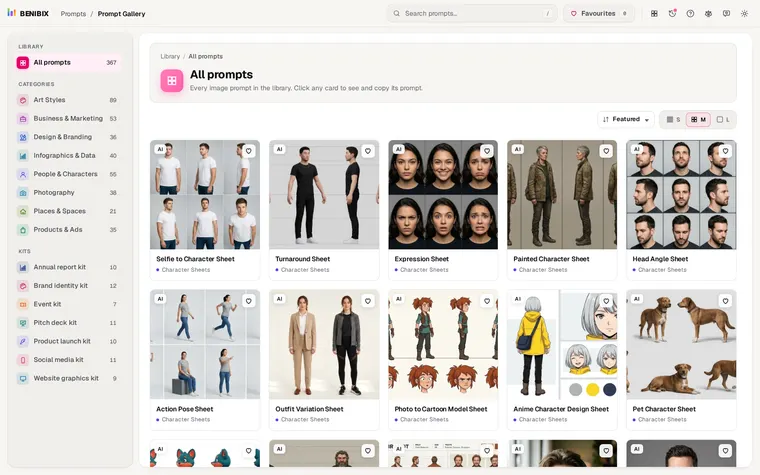
The product prompts in the Prompt Gallery follow this pattern. Here is how it works and what to check before you upload anything.
Which product photo should you start from?
You do not need a studio. You need a photo where the model can read the product:
- The whole product in frame, nothing cut off.
- Even daylight, no strong reflections across the label.
- Sharp, at full resolution, with the label facing the camera.
- A plain background helps, but any background works; the model replaces it.
For a product with several sides that matter (a box, a bottle with a back label), take one photo per side and generate each view separately.
How do you keep the product unchanged?
Image models redraw everything, including your product. Left alone, they straighten a bottle that is meant to be curved, invent a cleaner label or misspell the brand name. Say what must not change, in its own paragraph:
Hard rule: the product is exactly as supplied. Same shape, proportions,
colour, material, label and lettering. Do not redesign it, re-letter it,
straighten it or clean it up beyond removing dust.Add the typical failures to the negative prompt, or as a rule sentence when your tool has no negative field:
redesigned packaging, misspelled label, wrong colour, halo around the
edges, floating product, props, text, watermarkHow do you make a packshot on pure white?
The catalogue standard is the product alone on white, evenly lit, with a soft shadow under it. Describe each of those, because "white background" alone often gives you light grey or a gradient:
Photograph the product from the reference photo on a clean white
background as a catalogue packshot. Background: pure white, fully blown
out to paper white with no gradient. Shadow: a soft contact shadow
directly beneath the product. Framing: the product filling about 85% of
the frame, a three-quarter angle. Lighting: soft, even studio light, no
colour cast, clean edges. Square 1:1, no props, no text.That is a short version of the gallery's Product on White prompt. For a softer look there are Product on Gradient and Product on Bold Colour, and the Product Shot Grid gives you several angles in one image.
How do you make lifestyle scenes look real?
A lifestyle photo shows the product owned and used: a mug on a desk, a serum on a bathroom shelf, a bag on a café chair. What gives away a fake is not the room, it is how the product sits in it. Ask for four things:
- Scale. "Correct scale against the furniture." Without it, a candle ends up the size of a lamp.
- Contact. "A contact shadow where it meets the surface." No shadow means a floating product.
- Reflections. "Reflections of the room in any glossy face."
- One light. "The same colour temperature as the light in the room." A cool product in a warm room looks pasted in.
The gallery's Product in a Real Room prompt spells these out:
Integration: the product must sit in the scene, not on top of it.
Correct scale against the furniture, a contact shadow where it meets
the surface, reflections of the room in any glossy face, and the same
colour temperature as the light in the room.Keep the scene simple and on-brand. A styled flat-lay from above (Styled flat-lay) with a few props in your brand colours works for almost any small product and is hard to get wrong.
How do you make a set that looks like one shoot?
A shop page with five pictures in five different lights looks cheap. Keep these the same in every prompt of a set, and change only the scene:
- the light ("soft morning window light from the left"),
- the camera ("50mm, natural perspective, shallow depth of field"),
- the colour palette (two brand colours plus a neutral),
- the aspect ratio.
In the Prompt Gallery, the brand kit stores your brand name, colours, heading font and mood once, and fills them into every business prompt you customize. When the photos are done, the product launch kit has the graphics around them: a launch countdown story, a feature announcement, a website hero, a pricing table and a newsletter header, all in the same brand look.
Which marketplace rules should you check?
Shops and marketplaces have rules for the main image, and they change. Before you upload:
- Main image: many marketplaces want the product alone on pure white (RGB 255, 255, 255), filling most of the frame. Amazon, for example, asks for 85%.
- Accuracy: the main image must show the actual product as the buyer will receive it. A packshot made from your real photo with the product unchanged is the safe use; an invented product is not.
- Extra images usually allow lifestyle scenes, infographics and close-ups. This is where AI scenes are most useful.
Then check every image at full size: every letter of the label, the colour against the real product, the number of parts (lids, straps, buttons), and the edges against the white background.
Where can you check this?
What is the short version?
- One clear photo of the product is enough; attach it to Nano Banana, GPT Image or Flux Kontext.
- Always add the rule: the product exactly as supplied, label and lettering included.
- Packshots: pure white, soft contact shadow, product filling about 85% of the frame.
- Lifestyle: correct scale, contact shadow, reflections and one colour temperature.
- Keep light, camera, palette and ratio the same across a set, and check the marketplace rules.
The Prompt Gallery has tested packshot, lifestyle, mockup and hero banner prompts with these rules already written in, in its Products & Ads category. The course lessons on setting up a brand kit and making a matching image set with a kit show how to turn them into a whole set for your shop.