Short answer: Claude Code has no separate desktop download: it is the Code tab in the Claude desktop app, for macOS and Windows, with Linux in beta. Each conversation there is a session with its own project folder; you run several side by side, review every change in a diff view, and turn on Worktree so each session works in its own copy of the project. It is the same Claude Code as in the terminal, with the same plan limits.
Not everyone wants to live in a terminal. The Code tab gives you Claude Code with panes, buttons and a visual diff, and you can still open a terminal inside it when you need one.
Checked against the Claude Code desktop docs on 23 November 2026.
Where do you get it?
Download the Claude desktop app for macOS or Windows (there is an ARM64 installer for Windows on ARM too); on Linux it installs with apt and is marked beta. Sign in with the account you use for Claude Code, open the Code tab and pick a project folder. The app also has the chat and Cowork tabs; the Code tab is Claude Code.
Already use Claude Code in a terminal? claude --desktop opens the desktop app on the current folder, and claude --desktop --continue opens your last session there.
What can you do in the Code tab?
- Run sessions in parallel. Each session has its own chat history and project folder. The sidebar lists them, and you can put two in split view.
- Review changes in a diff view. Click the line counts (like
+12 -1) on the Changes card to step through every file before you commit or open a pull request. - Arrange panes. Chat, diff, browser, terminal, file editor, plan, tasks and subagents, side by side in any layout.
- Use the built-in terminal and browser. Ctrl and the backtick key open a terminal in the session's folder;
Cmd+Shift+B(Mac) orCtrl+Shift+B(Windows) opens a browser pane for docs or your running app. - Pick a permission mode per session: Manual (asks before each edit and command), Accept edits, Plan, or Auto.
One difference from the terminal: in the desktop app, Shift+Tab does not cycle the permission modes. Use the mode picker instead.
What does Worktree do?
By default a session works in the project folder itself. Two sessions in the same folder can then edit the same file at the same time and trip over each other. Turn on Worktree before you start a session, and that session works in its own Git worktree: an isolated copy of the project on its own branch. Parallel work never collides, and you merge what you keep.
Worktrees go in <project>/.claude/worktrees/ unless you set another folder under Settings, Code. The project has to be a Git repository.
Desktop app or terminal: which should you use?
| You want | Use |
|---|---|
| To see every change as a visual diff before you accept it | Desktop |
| Several tasks at once without juggling terminal windows | Desktop with Worktree |
Scripts, CI, claude -p and pipes | Terminal |
| SSH sessions on a server | Both: the desktop app has SSH sessions too |
Both read the same settings files and CLAUDE.md, and both count toward the same usage limits. Many people use both: the terminal for quick jobs, the desktop app for longer, parallel work.
Where can you check this?
- Claude Code docs: Desktop, the Code tab, downloads, parallel sessions, the diff view, panes and Worktree
- Claude Code docs: CLI reference, the
--desktopflag
Can you start from a ready setup?
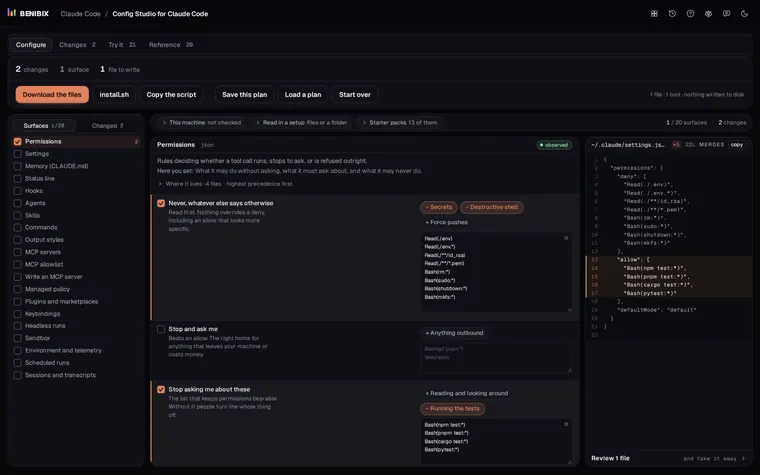
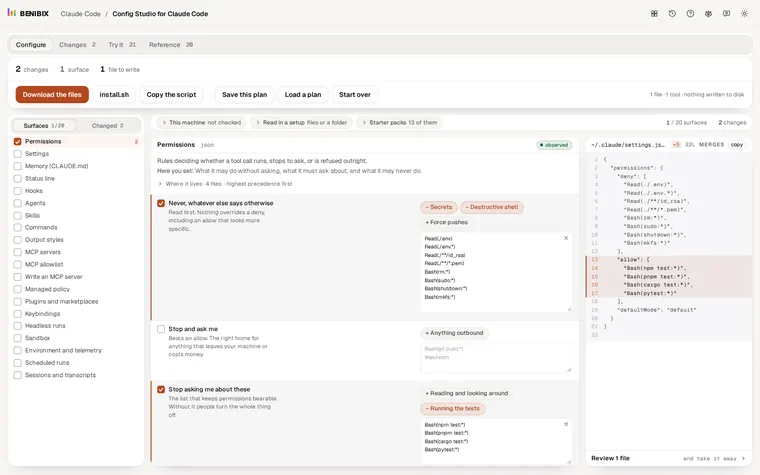
Yes. The desktop app reads the same files as the terminal: CLAUDE.md, settings.json with permissions, hooks and MCP servers. Config Studio for Claude Code starts you from a ready pack, explains each file and writes it for you, so a new session in the Code tab knows your project from the first message.