Short answer: Open claude.ai/code, connect GitHub, pick a repository and describe the task. Claude Code clones the repo onto a cloud machine Anthropic runs and works there, so it keeps going after you close your laptop. When it is done, review the changes and open a pull request, or run claude --teleport in your own checkout to continue the session in your terminal. It is on Pro, Max, Ultra and Team plans (and Enterprise premium or Chat + Claude Code seats), within your normal usage limits.
Local Claude Code stops when your computer sleeps. A cloud session does not: you can start a refactor on your phone at the station and review the pull request at your desk.
Checked against the Claude Code docs on 23 November 2026.
How do you start a cloud session?
- Go to claude.ai and pick Code, or open claude.ai/code directly.
- Connect GitHub so the session can clone your repository and push a branch.
- Choose the repository and an environment (the default one works to start).
- Type the task, as specific as you would write it in the terminal.
You can also start one from the Code tab of the Claude mobile app, from the desktop app by picking a cloud environment, or from your terminal with claude --cloud "the task".
What happens while it runs?
The session runs on infrastructure Anthropic manages, in a cloud environment that sets network access, environment variables and setup scripts. You can check on it or steer it from any device. When it finishes, you see the changes and create a pull request from claude.ai/code.
The cost question has a short answer in the docs: a cloud session counts toward your plan's usage limits like the rest of your Claude and Claude Code use, and there is no separate charge for the cloud machine.
How does claude --teleport work?
Teleport moves a cloud session into your terminal. From a checkout of the same repository run:
claude --teleportYou get a picker of your cloud sessions; claude --teleport <session-id> opens one directly, and /teleport (or /tp) does the same inside a running session. Claude checks you are in the right repository, loads the conversation, and fetches the session's branch.
Three things must be true first:
- Clean git state: commit or stash your local changes.
- Same repository: a checkout of the same repo, not a fork.
- Branch pushed: the cloud session's branch has to be on the remote.
The handoff is one way from the command line: you can pull cloud sessions into your terminal, but not push an existing terminal session to the cloud. claude --cloud starts a new cloud session instead.
What should you commit before you start?
The cloud machine only knows what is in your repository. Your local ~/.claude settings and anything not committed stay on your computer. So commit what the session needs:
- CLAUDE.md with the build and test commands, so it can check its own work.
.claude/settings.jsonwith the project's permissions and hooks.- Skills in
.claude/skills/that the task should use.
A session that cannot run your tests can only guess whether its change works.
Where can you check this?
- Claude Code docs: Use Claude Code in the cloud, plans, where sessions start,
--cloud,--teleportand its requirements, and usage limits - Claude Code docs: CLI reference, the flags
Can you write CLAUDE.md and the settings before the first cloud run?
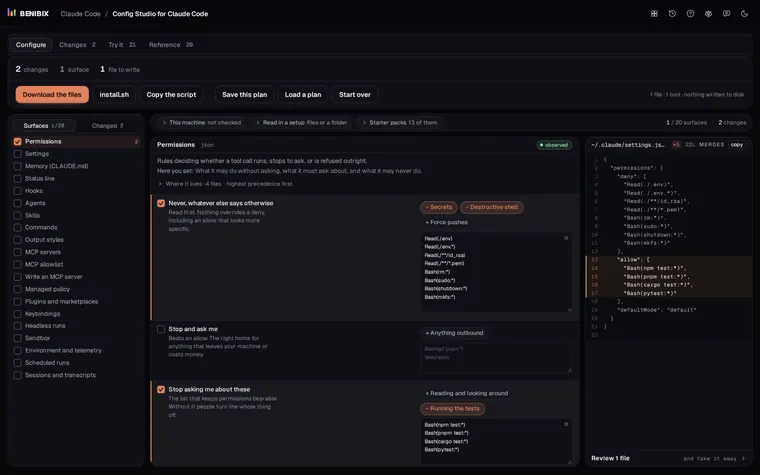
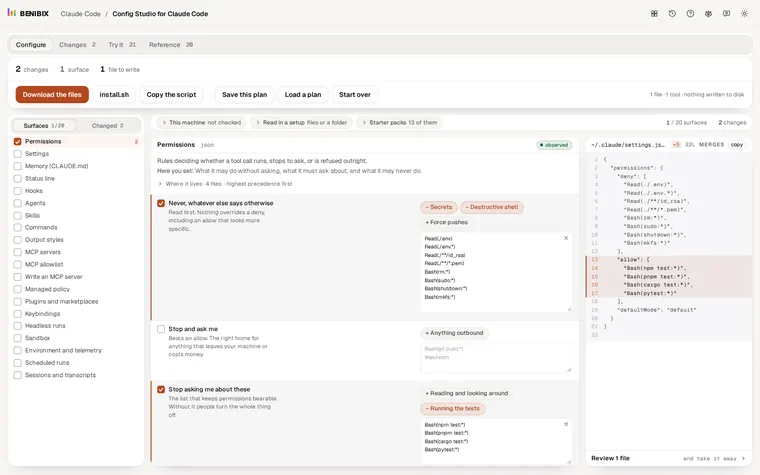
Yes. Config Studio for Claude Code explains every file Claude Code reads, including CLAUDE.md and the project settings.json, and writes them for you to commit. Then the cloud session starts with the same rules and commands as your own terminal. What to put in CLAUDE.md covers what belongs in it.