Short answer: Yes, Claude Code runs natively on Windows 10 (version 1809 or later), Windows 11 and Windows Server 2019 or later, with no WSL and no administrator rights. Open PowerShell and run irm https://claude.ai/install.ps1 | iex, or install it with WinGet: winget install Anthropic.ClaudeCode. Add Git for Windows so Claude can use Bash. Choose WSL 2 only when you want Linux tools or sandboxed commands.
Older guides tell Windows users to install WSL first. That was true once and is not any more: the native installer puts a signed claude.exe on your machine, and you start it from any terminal like every other command.
Checked against the Claude Code setup docs on 23 November 2026 (Claude Code 2.1.330).
Which install should you pick on Windows?
There are three ways in, and the official setup page puts them side by side:
| Way | Needs | Updates | Sandboxing |
|---|---|---|---|
| Native, the one-line installer | Nothing extra | By itself, in the background | Not supported |
| Native, WinGet | The winget command | You run winget upgrade | Not supported |
| WSL 2 | WSL 2 turned on | By itself, in the background | Supported |
The commands, in PowerShell, with WinGet and inside WSL:
irm https://claude.ai/install.ps1 | iex
winget install Anthropic.ClaudeCode
curl -fsSL https://claude.ai/install.sh | bashPick native when your projects live on the Windows side and use Windows tools. Pick WSL 2 when your project builds with Linux toolchains, or when you want Claude's commands to run in a sandbox, which native Windows does not support. If you install in WSL, you also start claude inside the WSL terminal, not from PowerShell.
How do you know if you are in PowerShell or CMD?
Look at the prompt. PowerShell shows PS C:\Users\YourName>, CMD shows C:\Users\YourName> without the PS. The two need different install lines. In CMD the one line is:
curl -fsSL https://claude.ai/install.cmd -o install.cmd && install.cmd && del install.cmdThe installer shows no progress while it downloads. When it finishes, open a new terminal window and run claude --version. A version number means it worked; "not recognized" means the install folder is not on your PATH yet, and a new window usually fixes that.
Why install Git for Windows as well?
Without it, Claude Code runs its shell commands in PowerShell. With Git for Windows installed, it uses Git Bash for its Bash tool, which is what most project scripts, READMEs and Claude's own habits expect. You still keep PowerShell: on a claude.ai or Console account the PowerShell tool stays on next to Bash.
If Claude Code cannot find Git Bash, point it there in your settings.json:
{
  "env": {
    "CLAUDE_CODE_GIT_BASH_PATH": "C:\\Program Files\\Git\\bin\\bash.exe"
  }
}Does a WinGet install update itself?
Not by default. The native installer updates in the background, but WinGet, like Homebrew, leaves upgrades to you. Run this now and then:
winget upgrade Anthropic.ClaudeCodeOr set the environment variable CLAUDE_CODE_PACKAGE_MANAGER_AUTO_UPDATE to 1, and Claude Code runs the upgrade itself when a new version is out. One catch from the docs: Windows locks a running claude.exe, so the upgrade can fail while a session is open. Claude Code then shows you the command to run once you close it.
What does your PC need?
- Windows 10 1809 or later, Windows 11, or Windows Server 2019 or later
- 4 GB of RAM or more, an x64 or ARM64 processor
- An internet connection and a Pro, Max, Ultra, Team or Enterprise plan, or a Console account
Administrator rights are not on the list. The docs say it plainly: you do not need to run the installer as Administrator.
Where can you check this?
- Claude Code docs: Set up Claude Code, system requirements, the three Windows options, Git for Windows and WinGet updates
- Git for Windows, the download
What do you set up after installing?
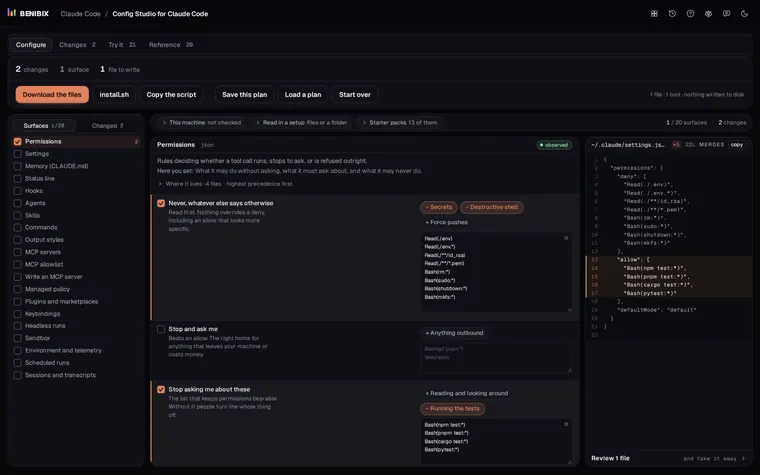
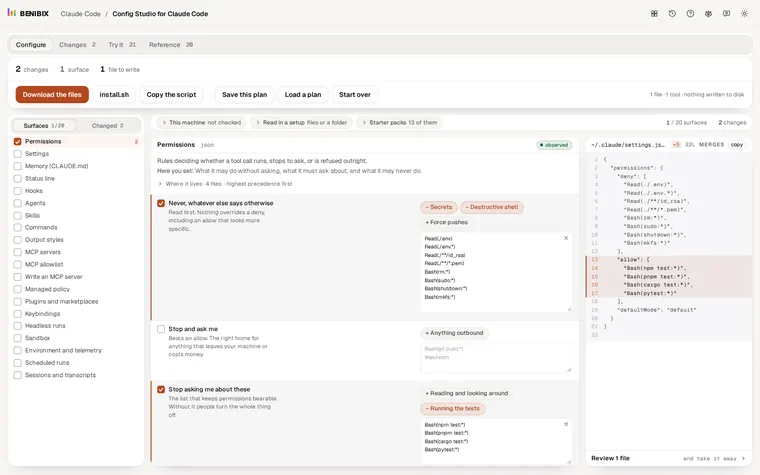
Once claude --version answers, the next files are the same on every system: CLAUDE.md, permissions and settings. Config Studio for Claude Code explains each file Claude Code reads, shows which one wins, and writes it for you, including the env block above. Claude Code setup: 3 things to do after installing gives the order.