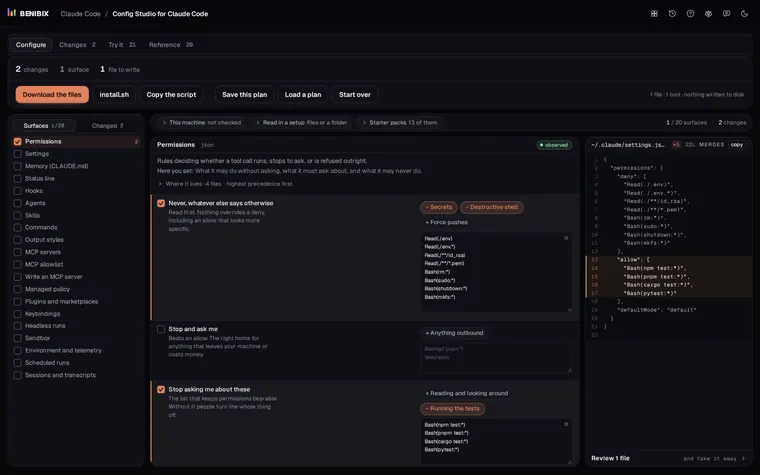
Short answer: after installing Claude Code, set up three things, in this order. First, project notes: run /init and Claude writes a CLAUDE.md with your build and test commands. Second, permissions: run /permissions and allow the specific commands you trust, such as your test command. Third, hooks: your own scripts that run at set moments, for the rules that must never be skipped. Allow specific commands; skipping all permissions on your real machine is risky.
Claude Code works without any setup, and most people leave it that way. Then they explain the same build command in every session and approve the same harmless command forty times a day. Ten minutes of setup fixes both.
Checked against the Claude Code docs (10 November 2026).
Step 1: what does /init write?
Open Claude Code in your project and type /init. Claude reads the codebase and writes a CLAUDE.md with the build commands, test instructions and conventions it finds. If one already exists, it suggests improvements instead of overwriting it. Claude reads the file at the start of every session.
Then add what it could not find in the code: "use pnpm, not npm", "never edit generated/". Keep it under 200 lines; longer files are followed less reliably. What to put in CLAUDE.md has a short example.
Step 2: which commands should you allow?
Type /permissions and add allow rules for the commands you run all the time and trust completely:
{
  "permissions": {
    "allow": ["Bash(pnpm test *)", "Bash(pnpm lint)", "Bash(git status)", "Bash(git diff *)"],
    "deny": ["Read(./.env)", "Read(./secrets/**)"]
  }
}Each rule names one command or a narrow pattern. Deny rules win over allow rules, so a secret file stays unread even if something broader is allowed. New terminal sessions start in auto mode on current versions, where a classifier reviews risky actions before they run; allow rules are still the clearest way to say "this one is always fine".
Why not skip permissions altogether?
--dangerously-skip-permissions turns every check off: Claude can run any command and edit any file without asking. On a throwaway container that can be reasonable; on the machine with your SSH keys, your browser profile and your other projects, one wrong command is enough. Allow the specific commands instead, and use the sandbox if you want fewer prompts with a safety net.
Step 3: what are hooks for?
For rules that a prompt cannot guarantee. A hook is a script that Claude Code runs at a set moment, for example before every tool call (PreToolUse) or after every file edit (PostToolUse):
- Run the formatter after every edit, so style is never a review comment.
- Block any command that touches the production database, every time, whatever the prompt says.
- Run the tests before Claude says it is done.
CLAUDE.md asks; a hook enforces. Start with one, usually the formatter. Claude Code hooks shows how a hook blocks a command.
Where can you check this?
- Claude Code docs: memory,
/initand the 200-line advice - Claude Code docs: permission modes, the starting mode and skipping permissions
- Claude Code docs: hooks, the hook events
Can you see which file each setting goes in?
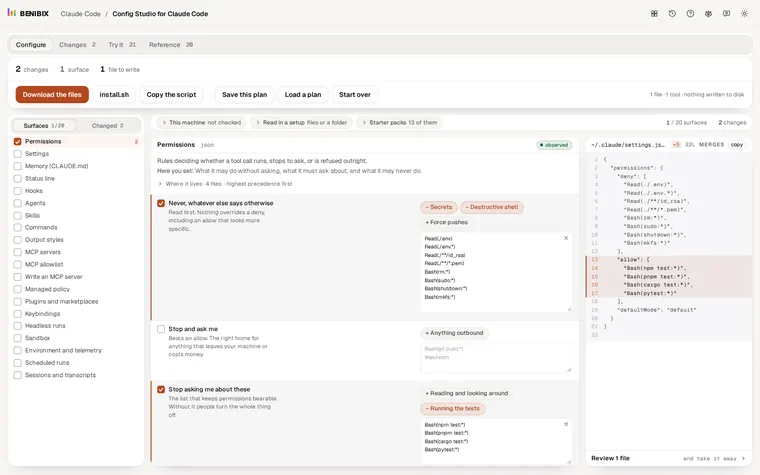
That is the part people get wrong: CLAUDE.md, permissions and hooks each live in several files that override each other. Config Studio for Claude Code puts all 20 surfaces Claude Code reads in one place, shows which file wins, explains every option and writes the file for you; nothing changes on your computer until you run it. For the very first session, see Claude Code for beginners.