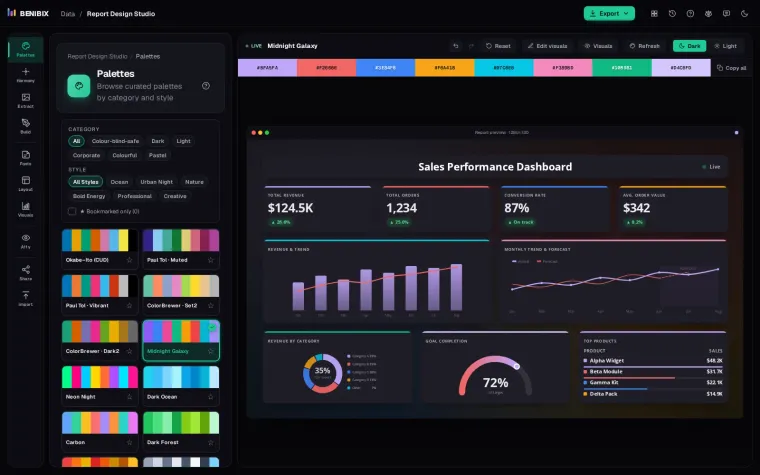
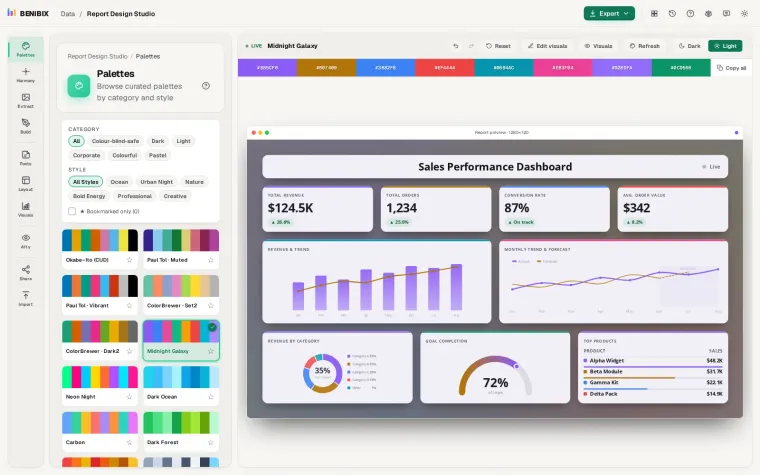
Short answer: click an empty part of the page, open the Format pane, then Canvas background, pick your image under Image, set Image fit to Fit and Transparency to 0%. Make the image the same shape as the page: 1280 × 720 pixels for the default 16:9 page, or 2560 × 1440 so it stays sharp on high-resolution screens. Then give your visuals a transparent background so the design shows through.
How do you add a background, step by step?
- Open the report page in Power BI Desktop and click an empty spot on the canvas, so no visual is selected.
- In the Format pane (the paint roller), open Canvas background.
- Under Image, choose Browse and pick the file.
- Set Image fit to Fit. Normal places it at its own size, Fill stretches it and may distort it.
- Set Transparency to 0%, or the image stays faded or hidden.
- For each visual, open Format, General, Effects, Background, and turn it off (or set its transparency to 100%), so the panel drawn in the image is the visual's card.
The background belongs to one page. For a multi-page report, set it on one page, then Duplicate page and use the copy as the start of every other page.
Canvas background or wallpaper?
| Setting | Where it shows | Use it for |
|---|---|---|
| Canvas background | Inside the page area | The designed background: bars, panels, title band |
| Wallpaper | Outside the page, in the grey area around it | A plain colour that frames the page |
A theme JSON can set the wallpaper and the page colour. It can also embed one image, written into the file as text, but that image is then the same on every page and makes the theme file large, so a designed background is usually set by hand, page by page.
What size should the image be?
Make the image the same aspect ratio as the page, or Fit leaves bands at the sides.
| Page size in Power BI | Image size (1×) | Sharp on high-DPI screens (2×) |
|---|---|---|
| 16:9 (default) | 1280 × 720 | 2560 × 1440 |
| 4:3 | 960 × 720 | 1920 × 1440 |
| Letter | 816 × 1056 | 1632 × 2112 |
PNG keeps edges and text crisp. Keep the file small: a background with large flat areas is usually a few hundred kilobytes at 2×. Very large images slow down the report when it opens, especially on Power BI Service and in the mobile app.
How do you design it so visuals fit?
- Draw the panels where the visuals go. A soft rounded card in the background, with the visual on top and its own background off, looks like one designed element.
- Leave space for the title and the slicers. A band at the top for the report title, and a column or strip for filters.
- Navigation goes in the background too. Draw the bar, then put page navigator buttons on top of it.
- Keep it quiet. Gradients and textures behind charts make them harder to read. Contrast belongs to the data, not the background.
- Mind the theme. Use your theme's colours in the background, or the visuals will clash with the page.
Which mistakes show?
- The wrong aspect ratio, so bars appear at the edges or the panels no longer line up with the visuals.
- A 1× image on a 4K screen, which looks soft. Export at 2×.
- Text inside the image that should be in the report, such as the title or the data date. It cannot change, be translated or be read by screen readers. Keep those as text boxes.
- Visual backgrounds left on, so a white rectangle sits on top of your designed panel.
Where can you check this?
Can you design the background and the theme together?
Report Design Studio designs both. Its Layout section lays out the page from a starter (an exec scorecard with a top bar, an analytical page with a sidebar and more): navigation, a title bar, a slicer panel and tiles for your visuals, in your palette, for Power BI 16:9, 4:3 or Letter. Export it as a PNG at 1× or 2×, an SVG with named layers for Figma, or a PowerPoint slide, and export the matching theme JSON from the same design, so the page and the visuals share one look.