Short answer: year-over-year (YoY) growth is (this period − the same period last year) ÷ the same period last year. In Power BI, compare your measure with CALCULATE([Revenue], SAMEPERIODLASTYEAR('Date'[Date])) and divide with DIVIDE. In SQL, use LAG(revenue, 12) over the months. In Excel, =(B14-B2)/B2 where B2 is the same month a year earlier.
Why compare with the same period last year?
Many businesses are seasonal. A shop sells more in December than in November, every year. Comparing December with November says "growth +40%" when nothing changed; comparing December with last December says what actually happened. Month-over-month growth is useful for fast-moving numbers like signups in a launch week, but for revenue, orders or costs, compare with the same period last year.
How do you calculate it in Power BI with DAX?
Revenue Growth % =
VAR Curr = [Revenue]
VAR Prev = CALCULATE ( [Revenue], SAMEPERIODLASTYEAR ( 'Date'[Date] ) )
RETURN DIVIDE ( Curr - Prev, Prev )Set the measure's format to percentage. Three things make it work:
- A date table.
SAMEPERIODLASTYEARneeds a table with one row per day, marked as a date table (Table tools, Mark as date table) and related to your sales table. Without it the measure returns blanks or wrong numbers. - The date from the date table on the axis. Use
'Date'[Month]or'Date'[Date]in your visual, not the order date from the sales table. DIVIDE, not/. When last year has no revenue,DIVIDEreturns a blank instead of an error.
The same measure works on any level: a month in a chart, a quarter in a matrix, the year to date in a card filtered to this year.
How do you calculate it in SQL?
WITH m AS (
  SELECT DATE_TRUNC('month', order_date) AS month, SUM(net_amount) AS revenue
  FROM sales GROUP BY 1
)
SELECT month, revenue,
       (revenue - LAG(revenue, 12) OVER (ORDER BY month))
         / NULLIF(LAG(revenue, 12) OVER (ORDER BY month), 0) * 100 AS growth_pct
FROM m;LAG(revenue, 12) looks twelve rows back, which is twelve months back only if no month is missing. If a month can have no sales, generate the list of months first and join the sales to it, so every month has a row. NULLIF(..., 0) stops a division by zero. On SQL Server, use DATETRUNC(month, order_date) (2022 and later) or DATEFROMPARTS(YEAR(order_date), MONTH(order_date), 1).
How do you calculate it in Excel?
With months in column A and revenue in column B, starting in row 2, the growth for row 14 (the first month with a year before it) is:
=IFERROR((B14-B2)/B2, "")Format it as a percentage and fill it down. IFERROR leaves the cell empty when last year has no value. In a PivotTable you can get the same without a formula: Show Values As, % Difference From, with the year as the base field and (previous) as the base item.
What distorts growth?
- Acquisitions. Revenue from a company you bought counts as growth, but it is not the same business growing. Show organic growth separately.
- Currencies. If last year was converted at a different exchange rate, part of the "growth" is the rate. Compare at a constant rate.
- Different calendars. A month with five Saturdays against one with four makes retail growth jump. Compare like-for-like periods, or by weeks.
Where can you check this?
- Microsoft Learn: SAMEPERIODLASTYEAR (DAX)
- Microsoft Learn: DATEADD (DAX)
- PostgreSQL docs: Window functions
Which chart shows it best?
One column per month, green above zero and red below, makes good and bad months obvious at a glance. A line of the last 12 to 24 months shows whether growth is speeding up or slowing down. At the top of a report page, a card with year-to-date growth next to revenue.
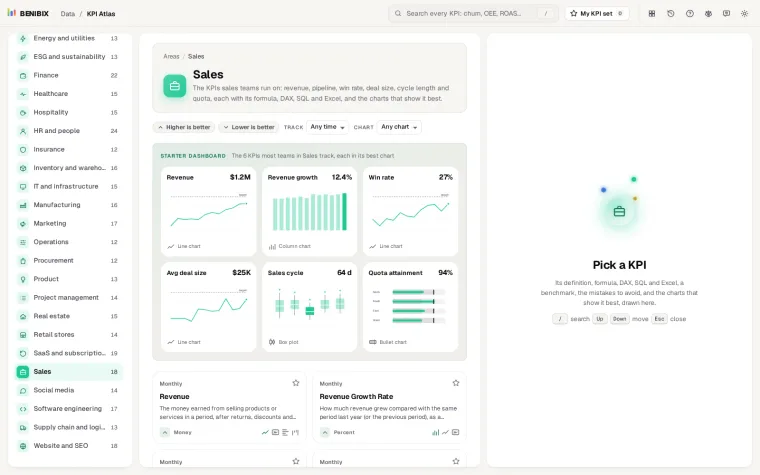
KPI Atlas has the revenue growth rate with this DAX, SQL and Excel ready to copy, the common mistakes and the best charts, and the same for 455 KPIs across 30 areas of a business.