Short answer: Four CSS properties do it. perspective on the outer box makes the turn look 3D, transform-style: preserve-3d on the inner box keeps both faces in 3D, backface-visibility: hidden on each face hides the side facing away, and transform: rotateY(180deg) on the back face (always) and on the inner box (when flipped) turns it over.
Flip cards are everywhere: team pages with a bio on the back, flashcards, pricing cards, product details. The effect is pure CSS, but miss one of the four properties and you get a card that flips flat, shows both sides at once, or shows the back's text in mirror writing.
How do you make a flip card on hover?
This is Motion Studio's flip card, exported as plain HTML and CSS:
<div class="flip-card" tabindex="0">
  <div class="flip-card-inner">
    <div>Front</div>
    <div>Back</div>
  </div>
</div>.flip-card {
width: 160px;
height: 110px;
perspective: 600px;
cursor: pointer;
}
.flip-card-inner {
position: relative;
width: 100%;
height: 100%;
transform-style: preserve-3d;
transition: transform 0.7s cubic-bezier(.65, 0, .35, 1);
}
.flip-card:hover .flip-card-inner, .flip-card:focus-visible .flip-card-inner {
transform: rotateY(180deg);
}
.flip-card-inner>div {
position: absolute;
inset: 0;
display: grid;
place-items: center;
border-radius: 14px;
color: #fff;
font-family: inherit;
font-size: 18px;
font-weight: 700;
-webkit-backface-visibility: hidden;
backface-visibility: hidden;
}
.flip-card-inner>div:first-child {
background: linear-gradient(135deg, #7c3aed, #51269a);
}
.flip-card-inner>div:last-child {
background: linear-gradient(135deg, #0e7490, #094b5e);
transform: rotateY(180deg);
}
@media (prefers-reduced-motion:reduce) {
.flip-card, .flip-card *, .flip-card::before, .flip-card::after, .flip-card *::before, .flip-card *::after {
animation: none !important;
transition: none !important;
}
}tabindex="0" and :focus-visible make it flip for keyboard users too: Tab to the card and it turns over, Tab away and it turns back.
What does each property do?
| Property | On | What it does |
|---|---|---|
perspective: 600px | The outer box | Sets how far away the viewer is. Smaller is a stronger 3D effect; without it the card just gets narrower and wider |
transform-style: preserve-3d | The inner box | Keeps its children in 3D space instead of painting them flat onto it |
backface-visibility: hidden | Each face | Hides a face when its back is turned to you |
rotateY(180deg) | The back face | Starts the back already turned away, so it faces you after the flip |
rotateY(180deg) | The inner box, on hover | The flip itself |
position: absolute; inset: 0 | Each face | Stacks both faces in the same place |
For a card that flips top to bottom instead, use rotateX(180deg) in both places.
How do you make a flip card that works on phones?
Phones have no hover. A tap on a hover card may flip it and leave it stuck, or do nothing. For a card people should tap, make it a button that remembers its side:
<button class="tap-card" type="button" aria-pressed="false">
  <span class="flip-card-inner">
    <span>Front</span>
    <span>Back</span>
  </span>
</button>.tap-card {
display: block;
width: 160px;
height: 110px;
padding: 0;
border: 0;
background: none;
font: inherit;
perspective: 600px;
cursor: pointer;
}
.tap-card .flip-card-inner {
display: block;
position: relative;
width: 100%;
height: 100%;
transform-style: preserve-3d;
transition: transform 0.7s cubic-bezier(.65, 0, .35, 1);
}
.tap-card .flip-card-inner>span {
position: absolute;
inset: 0;
display: grid;
place-items: center;
border-radius: 14px;
color: #fff;
font-size: 18px;
font-weight: 700;
backface-visibility: hidden;
}
.tap-card .flip-card-inner>span:first-child {
background: linear-gradient(135deg, #7c3aed, #51269a);
}
.tap-card .flip-card-inner>span:last-child {
background: linear-gradient(135deg, #0e7490, #094b5e);
transform: rotateY(180deg);
}
.tap-card[aria-pressed="true"] .flip-card-inner {
transform: rotateY(180deg);
}document.querySelectorAll('.tap-card').forEach((card) => {
card.addEventListener('click', () => {
card.setAttribute('aria-pressed', card.getAttribute('aria-pressed') !== 'true');
});
});A button works with a mouse, a finger, Enter and Space, and aria-pressed tells screen readers whether it is turned over. Inside a button only inline elements such as span are allowed, which is why the inner box needs display: block: an inline span ignores its width and height, and the card would show nothing.
Why does my flip card flip flat, or show both sides?
| What you see | Why | Fix |
|---|---|---|
| The card squashes and stretches, no depth | No perspective, or it is on the inner box | Put perspective on the outer box |
| Both faces show, or the front shows through the back | backface-visibility: hidden is missing on a face | Add it to both faces |
| The back's text is in mirror writing | The back face is not turned 180° to start with | transform: rotateY(180deg) on the back face |
| It worked, then went flat after a style change | overflow: hidden, opacity below 1 or a filter on the inner box | These force a flat layout; put them on the faces or the outer box instead |
| Long text spills off the back | Faces are absolutely positioned, so the card does not grow with them | Give the card a size that fits its content, or aspect-ratio |
The last-but-one row is the hardest to find. MDN lists the property values that force transform-style back to flat, among them overflow other than visible or clip, opacity less than 1 and filter other than none.
What about people who turn animations off?
The export's last rule switches the transition off for people who set "reduce motion" in their system: the card still shows its back on hover or focus, at once, without the turn. What prefers-reduced-motion does explains the setting. The older -webkit-backface-visibility line is only for browsers from before March 2022; every current browser reads the plain property.
Where can you check this?
Can you change the colours, speed and easing without editing CSS?
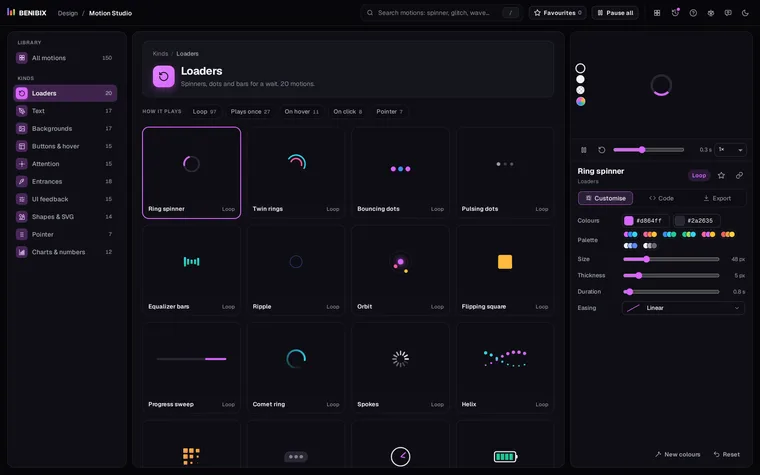
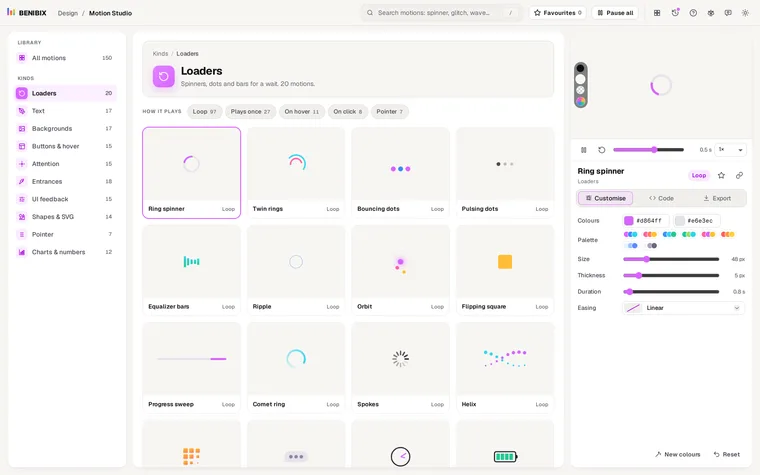
Motion Studio has the Flip card with its front and back colours, text, size, duration and easing as settings, among 150 motion graphics. It exports the result as HTML and CSS, React, Vue or Svelte, a GIF or a video, with the reduced-motion rule already in the code.