Short answer: wrap the image in a <picture> element with a <source media="(prefers-color-scheme: dark)"> for the dark version and an <img> for the light one. GitHub shows each visitor the version that matches their theme.
More than half of developers browse GitHub in dark mode. A stats card with a white background looks like a hole in the page for them, and a dark card looks heavy for everyone else. GitHub lets you serve both.
How does the picture element switch images?
GitHub supports the HTML <picture> element with a prefers-color-scheme media query. The browser picks the source that matches the visitor's theme and falls back to the <img>:
<picture>
  <source media="(prefers-color-scheme: dark)" srcset="https://example.com/card-dark.svg" />
  <img src="https://example.com/card-light.svg" alt="GitHub stats" />
</picture>Always keep an alt text on the <img>: it is what screen readers announce, and what shows when an image fails.
What about widgets that take a theme?
Most widget services take a theme parameter, so the two sources are the same URL with a different theme, for example theme=default and theme=github_dark on the stats card. Watch out for two things:
- Commas in
srcset. GitHub cuts asrcsetat the first comma, soicons?i=js,ts,goonly showsjs. Write the comma as%2Cinsidesrcset. - Transparent images. A transparent SVG with dark text disappears on a dark background. Give it a light and a dark version too.
What about #gh-dark-mode-only?
Older READMEs add #gh-dark-mode-only or #gh-light-mode-only to the end of an image address, and show two images of which GitHub hides one. GitHub has deprecated that method in favour of <picture>, and it only ever worked on GitHub itself: anywhere else, both images show. Replace it when you next edit the file.
Where does the switch not work?
The <picture> element is honoured on github.com: in READMEs, issues, pull requests and comments. Other places that render your README, such as a package registry or a documentation site, may drop the <source> and show only the <img>. That is why the <img> should hold the version that reads well on a white page: it is the one everyone gets when the switch is not understood.
Keep both versions the same size, too. If the dark card is taller than the light one, the text below it jumps when someone changes their theme.
How do you test both versions?
On GitHub, open Settings, Appearance and pick a light theme, look at your profile, then pick a dark one and look again. With Sync with system, changing your computer's theme does the same. Check on a phone as well: a card that is fine at full width can turn into a strip of tiny text on a small screen.
Where can you check this?
Is there an easier way?
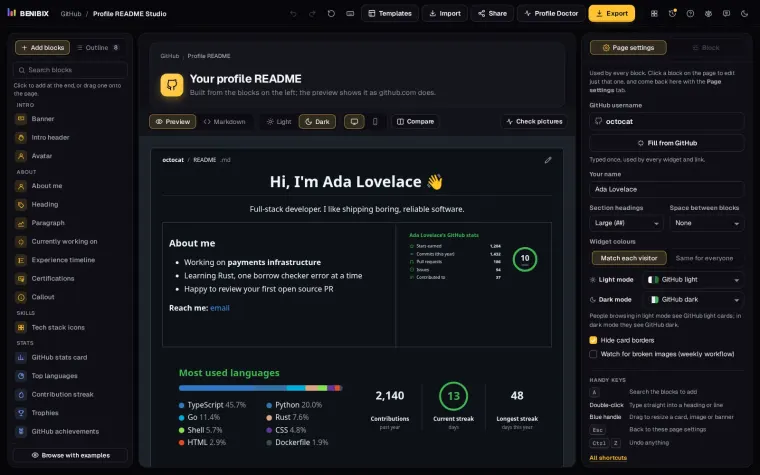
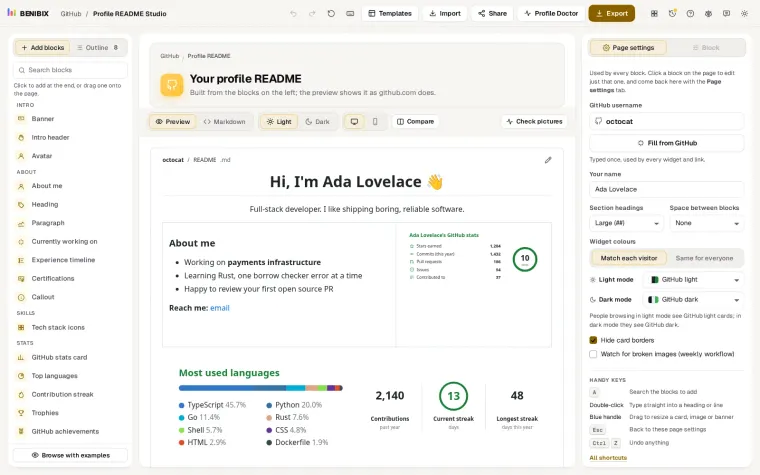
In Profile README Studio, set Widget colours to Match each visitor. Every card is written as a light and dark pair for you, with the commas already escaped, and the preview has a Light and Dark switch so you can see both before you publish.
The lesson Make your profile README look right in light and dark mode goes through the themes, the Light and Dark preview and the cards that need a pair, step by step.