Short answer: GitHub-flavoured Markdown adds alerts (> [!NOTE]), collapsible sections (<details>), diagrams from text (a mermaid code block), footnotes ([^1]), task lists (- [ ]) and more. They work in READMEs, issues, pull requests and wikis.
I wrote READMEs for years with nothing but headings, lists and code blocks. These are the extras I now use in almost every one.
How do you write an alert?
A blockquote that starts with a type in brackets becomes a coloured box with an icon:
> [!NOTE]
> The API key is only needed for the cloud version.

> [!WARNING]
> This deletes the folder and everything in it.There are five types: NOTE, TIP, IMPORTANT, WARNING and CAUTION. Use them sparingly. A README with an alert in every section has no alerts.
How do you make a collapsible section?
Long output, a full config or a list of every option can hide behind a click:
<details>
<summary>The full config file</summary>

Everything here stays hidden until the summary is clicked.

</details>Keep an empty line after <summary> and before </details>, or the Markdown inside will not be rendered.
How do you draw a diagram from text?
A code block marked mermaid is drawn as a diagram:
```mermaid
flowchart LR
  A[Push] --> B[Tests] --> C{Pass?}
  C -- yes --> D[Deploy]
  C -- no --> E[Fix]
```Flowcharts, sequence diagrams, class diagrams, Gantt charts and more all work. The diagram lives in the file as text, so it is diffed and reviewed like code and never goes stale the way a screenshot does.
How do footnotes work?
It runs in under a second.[^1]

[^1]: Measured on a 2023 laptop with 10,000 files.GitHub numbers them and puts them at the bottom with links back.
How do you write a task list?
- [x] Write the parser
- [ ] Add testsIn issues and pull requests the boxes can be ticked with a click, and GitHub shows the progress in lists of issues.
How do you show keyboard keys, and what else is there?
<kbd>Ctrl</kbd> + <kbd>C</kbd>draws keys.$E = mc^2$and$$ ... $$render maths.:rocket:and other shortcodes become emoji.- Every heading gets a link anchor, so
[see setup](#setup)jumps to## Setup.
Why does it show as plain text?
Most cases come down to a blank line or a position:
- An alert's marker must be alone on the first line of the quote, for example
> [!WARNING], with the text on the lines below. Only the five types work (note, tip, important, warning, caution), and an alert cannot sit inside a list or another quote. - Markdown inside
<details>needs a blank line after</summary>. Without it, the list or the code block inside is shown as raw text. - A Mermaid block needs the word
mermaidright after the three backticks, and one syntax error stops the whole diagram. GitHub shows the error in place of the picture, which at least tells you where to look.
Where can you check this?
- GitHub Docs: Basic writing and formatting syntax
- GitHub Docs: Organizing information with collapsed sections
- GitHub Docs: Creating diagrams
Does this work outside GitHub?
Partly. Alerts, Mermaid and footnotes are GitHub additions; other sites and editors may show alerts as plain quotes or a Mermaid block as code. If your README is also shown on a package registry, check it there too.
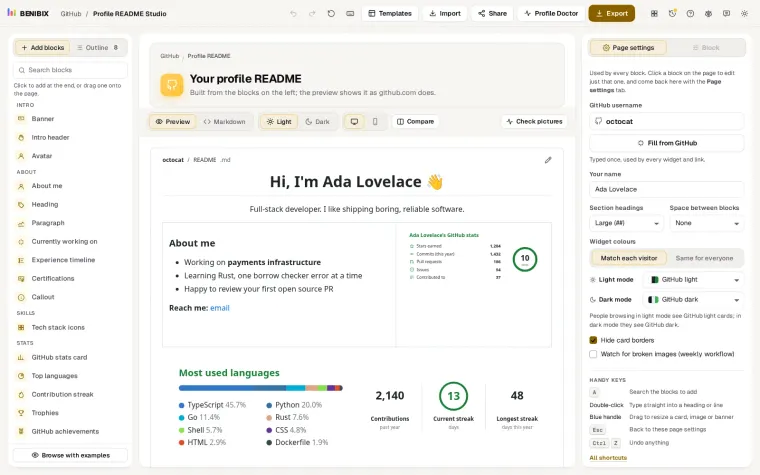
In a GitHub profile README, Profile README Studio has these as blocks: Callout writes every alert kind (and alerts with your own title), Collapsible section writes <details>, and Diagram (Mermaid) starts you from a flowchart, pie chart, timeline, mind map, git graph or journey. Its preview draws them the way GitHub does.