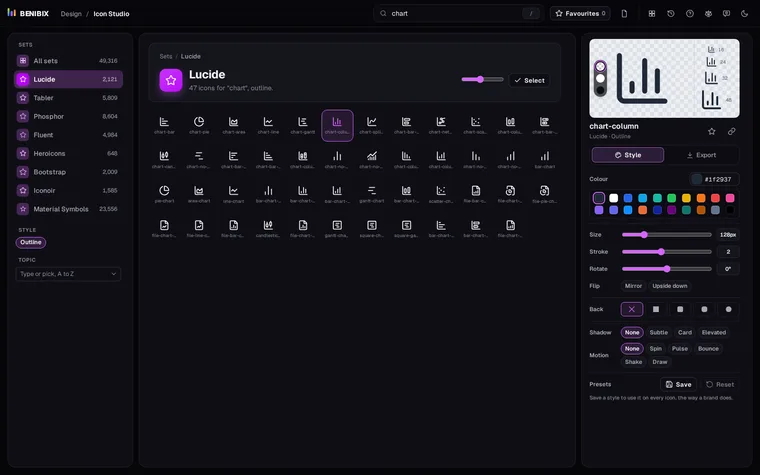
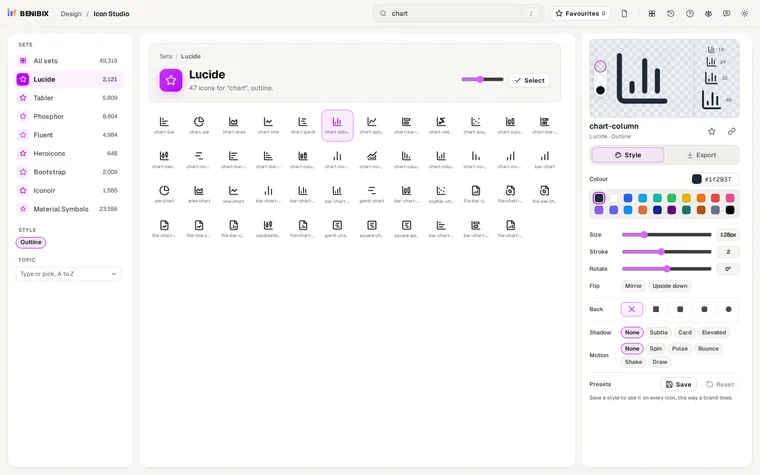
Short answer: for most web apps, pick Lucide for clean outlines or Tabler when you need the widest choice. Pick Phosphor when you want one icon in several weights, including duotone, and Fluent when the product should look at home next to Windows and Microsoft 365. All four are free for commercial use under the MIT or ISC licence.
Here is how they differ in practice.
How do the four sets compare at a glance?
| Lucide | Tabler | Phosphor | Fluent | |
|---|---|---|---|---|
| Icons | about 2,100 | over 5,800 | about 1,400 per weight | about 5,000 |
| Styles | Outline | Outline, filled | Thin, light, regular, bold, fill, duotone | Regular, filled |
| Grid and stroke | 24 px, 2 px stroke | 24 px, 2 px stroke | 256 unit grid, stroke by weight | Drawn per size, filled shapes |
| Licence | ISC | MIT | MIT | MIT |
| Looks like | Neutral, friendly, web | Neutral, slightly technical | Soft, rounded, playful at thin weights | Windows and Office |
Counts are the numbers Icon Studio loads from each set; they grow with every release.
When is Lucide the right choice?
Lucide began as a community fork of Feather and kept its look: round caps, round joins, a 2 px stroke on a 24 px grid. It is the default icon set of many React component libraries, which is why it feels familiar in web apps. Its only style is outline, so if you need solid icons for active states, you either fill them yourself or mix in another set.
Choose it for: web apps and sites that want a calm, neutral line style.
When is Tabler the right choice?
Tabler shares Lucide's grid and stroke, so the two sit well together, and it has nearly three times as many icons, plus a filled version of many of them. When Lucide has no icon for your odd concept (a specific file type, a niche device), Tabler often does.
Choose it for: dashboards and admin tools with many different things to show.
When is Phosphor the right choice?
Phosphor's strength is weights. Every icon exists in six styles, from hairline thin to bold, plus a solid fill and a two-tone duotone. That makes a clear hierarchy easy: regular in lists, bold for primary actions, fill for the selected state, all from one drawing.
Choose it for: products with a soft, friendly brand, and interfaces that need visible active and inactive states.
When is Fluent the right choice?
Fluent UI System Icons are Microsoft's own, the icons of Windows 11, Teams and Office. They are drawn as shapes rather than strokes, in regular and filled. Next to Microsoft products they look native; next to Lucide they look heavier.
Choose it for: add-ins, Power BI reports and anything that sits inside Microsoft 365.
Can you mix sets?
Yes, if they share a grid and a stroke. Lucide and Tabler mix almost invisibly: same 24 px grid, same 2 px stroke, same round caps. Phosphor at regular weight is close. Fluent's filled shapes look different from any outline set and are best used alone.
When you mix, keep three things the same across every icon: the size, the stroke width, and the colour.
What do the licences ask?
MIT and ISC both allow commercial use, changes and redistribution without paying or asking. The one condition is that the copyright and licence notice stays with copies you distribute, which usually means a line in your project's third-party notices. A visible credit on your website is not required.
Where can you check this?
What is the short version?
- Lucide: clean outlines, the web app default.
- Tabler: the biggest choice, outline and filled, mixes with Lucide.
- Phosphor: six weights and duotone for clear states.
- Fluent: the Microsoft look.
You do not have to decide before you search: Icon Studio searches all four at once, plus Heroicons, Bootstrap Icons, Iconoir and Material Symbols (nearly 50,000 icons in all), shows the result at 16 to 48 pixels, styles it with colour, background and shadow, and exports SVG, PNG, React or a Power BI measure. For icons in Power BI tables, see how to show SVG icons in a Power BI table.