Short answer: to show an icon in a Power BI table, write a measure that returns the icon as an SVG data URI, set the measure's data category to Image URL, and add it to a table or matrix. Power BI then draws the SVG in each row, and because it is a measure, the icon or its colour can change with the row's values.
What does the measure look like?
An SVG is text, so a measure can build one. The part before the comma tells Power BI it is an image:
Status icon =
VAR colour = IF ( [Margin %] >= 0.3, "%2310B981", "%23EF4444" )
RETURN
    "data:image/svg+xml;utf8," &
    "<svg xmlns='http://www.w3.org/2000/svg' viewBox='0 0 24 24' fill='none' " &
    "stroke='" & colour & "' stroke-width='2' stroke-linecap='round' stroke-linejoin='round'>" &
"<circle cx='12' cy='12' r='9'/><path d='M8 12l3 3 5-6'/></svg>"This draws a green circle with a tick when the margin is 30% or more, and a red one otherwise.
Which setting makes it work?
On its own the measure shows as a long line of text. To make Power BI draw it:
- Select the measure in the Data pane.
- On the Measure tools ribbon, set Data category to Image URL.
- Add the measure to a table or a matrix.
- Under Format visual, find Image size and set the height and width, for example 20 by 20.
What breaks it?
- The
#in colours. Inside a data URI,#starts a fragment and cuts the rest of the image off. Write colours as%23followed by the hex code:%2310B981, not#10B981. - Double quotes. DAX strings use double quotes, so write the SVG's attributes with single quotes, as above.
- A missing
xmlns. Withoutxmlns='http://www.w3.org/2000/svg'on the<svg>tag, the image does not render.
How do you show a different icon per row?
Use SWITCH to choose the whole icon by a value:
Trend icon =
VAR d = [Sales change %]
VAR path =
    SWITCH (
        TRUE (),
        d > 0.02, "<path d='M7 17L17 7M9 7h8v8'/>",
        d < -0.02, "<path d='M7 7l10 10M17 9v8H9'/>",
        "<path d='M5 12h14'/>"
    )
VAR colour = SWITCH ( TRUE (), d > 0.02, "%2310B981", d < -0.02, "%23EF4444", "%2394A3B8" )
RETURN
    "data:image/svg+xml;utf8,<svg xmlns='http://www.w3.org/2000/svg' viewBox='0 0 24 24' fill='none' stroke='"
& colour & "' stroke-width='2' stroke-linecap='round'>" & path & "</svg>"Up, down or flat arrows, in green, red or grey. Arrows also help readers who cannot tell red from green, which colour alone does not.
Where does it work?
Tables and matrices draw Image URL measures in their cells; the image size setting controls how big they are. The same data URI also works anywhere an image URL is accepted, such as an HTML content visual or a Markdown file.
Keep the SVG small. A measure evaluated for thousands of rows with a long SVG string makes the visual slower. Simple line icons with one or two paths are ideal, which is exactly what outline sets like Lucide and Tabler are made of.
Where can you check this?
What is the short version?
- A measure returns
data:image/svg+xml;utf8,followed by the SVG. - Set its data category to Image URL, then set the image size.
- Write
#as%23, and use single quotes inside the SVG. SWITCHchanges the icon or colour per row.
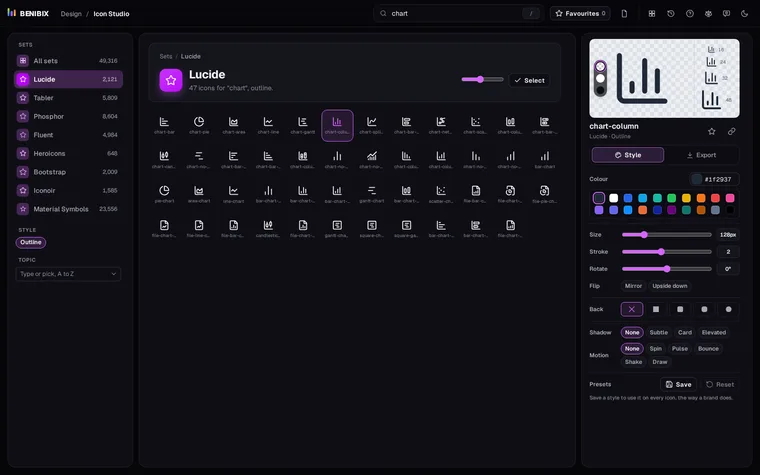
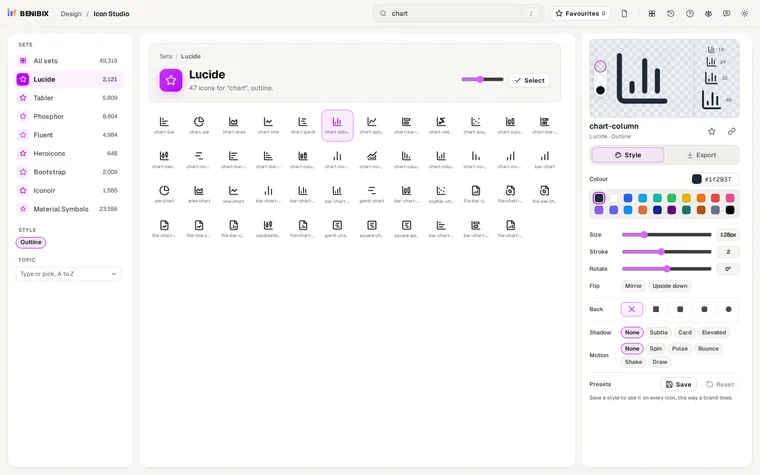
Icon Studio writes this measure for you: pick any of nearly 50,000 icons, style it, and copy it as a Power BI measure with the colour already escaped. To give the rest of the report matching colours, see Power BI theme JSON explained.