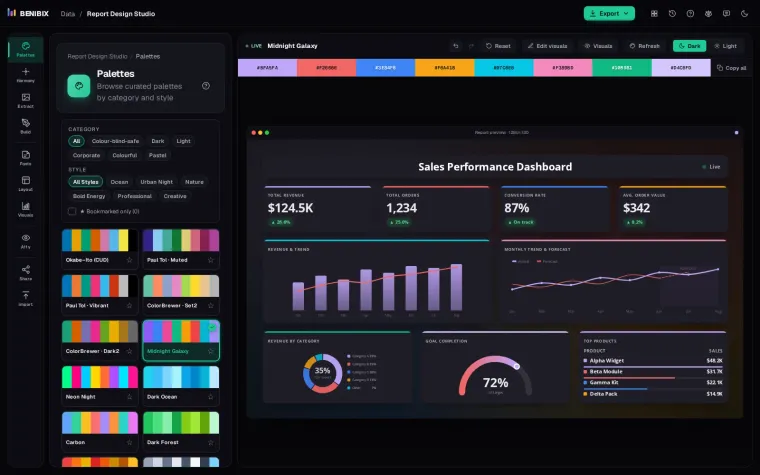
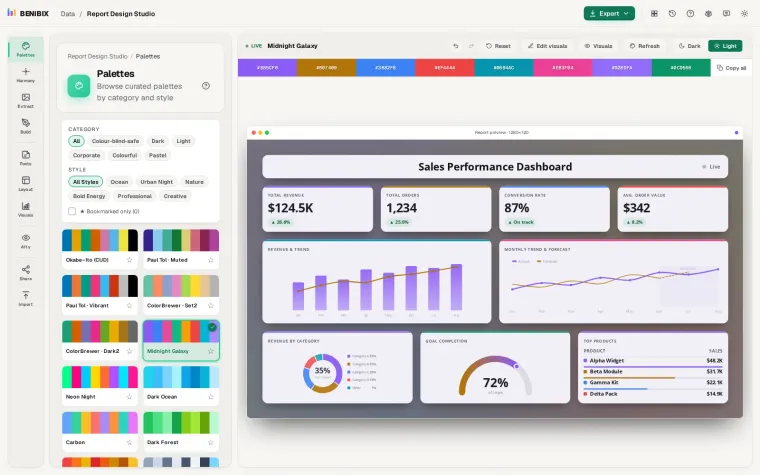
Short answer: a Power BI theme is a JSON file that sets a report's colours, fonts and visual defaults in one place. You import it under View, Themes, Browse for themes in Power BI Desktop, and every visual on every page picks it up. Only one key is required, name; everything else is optional and falls back to Power BI's defaults.
Here is what the main parts do, a small theme you can start from, and the things that usually go wrong.
What does a minimal theme look like?
{
  "name": "Midnight Galaxy",
  "dataColors": ["#BFA5FA", "#F26666", "#3E84F6", "#F6A41B", "#07C6E6", "#F389BD", "#10B981", "#D4C6FD"],
  "background": "#FFFFFF",
  "foreground": "#1E1F24",
  "tableAccent": "#3E84F6",
  "good": "#10B981",
  "neutral": "#F6A41B",
  "bad": "#F26666"
}Save it as midnight-galaxy.json, import it, and your charts use those eight colours in that order.
Which parts matter most?
dataColors
The palette for series and categories, used in order: the first series gets the first colour, and so on. Give it eight to twelve colours. The order matters more than people expect, because most charts only ever use the first three or four, so put your strongest, most distinct colours first.
background, foreground and tableAccent
background is the fill behind visuals, foreground the main text colour, and tableAccent the accent line in tables and matrices. Choose the background and foreground together, since they decide whether the text is readable at all.
good, neutral and bad
Used by KPI visuals and conditional formatting for "on target", "near" and "off target". Do not rely on red and green alone: about one man in twelve cannot tell them apart. Pair colour with an arrow or a label.
textClasses
Font settings by role instead of by visual:
"textClasses": {
  "title": { "fontFace": "Segoe UI Semibold", "fontSize": 14, "color": "#1E1F24" },
  "label": { "fontFace": "Segoe UI", "fontSize": 10, "color": "#5B5E69" },
  "callout": { "fontFace": "Segoe UI Light", "fontSize": 28, "color": "#1E1F24" }
}callout is the big number on cards, title visual titles, header table headers, and label axis and data labels. Setting these four covers most text in a report.
visualStyles
The deep end: defaults for any property of any visual. The first key is the visual type (* for all), the second the style name (* for all), then the property cards you see in the Format pane:
"visualStyles": {
  "*": { "*": {
    "border": [{ "show": true, "color": { "solid": { "color": "#E4E4EA" } }, "radius": 8 }],
    "dropShadow": [{ "show": false }]
  } }
}This gives every visual a light border and rounded corners and turns shadows off. You can then override one visual type, for example "card" or "lineChart", with its own entry.
How do you load it?
- In Power BI Desktop, open View on the ribbon.
- Open the Themes gallery and choose Browse for themes.
- Pick your
.jsonfile. Power BI says whether it imported, and the report updates.
To start from a theme you already have, choose Save current theme in the same menu: Power BI writes the current theme to a file you can edit.
Why does a theme fail to import?
- Invalid JSON. A trailing comma or a missing quote. Paste the file into a JSON validator first.
- Wrong value types. Font sizes are numbers, not strings; colours are
#RRGGBBstrings. - A property in the wrong card. In
visualStyles, each property has to sit in the card the Format pane shows it under, as an array of objects. - Visuals that ignore it. Formatting set by hand on a visual wins over the theme. Reset the visual to default to see the theme's values.
How do you check it before you ship it?
A theme that looks good on your screen can still fail readers. Check that every data colour has at least 3:1 contrast against the background (the WCAG rule for chart marks), that text reaches 4.5:1, and that the first colours stay distinct for people with colour blindness. See colour-blind-friendly palettes for dashboards for how.
Where can you check this?
What is the short version?
nameis the only required key;dataColorsis where most of the effect is.textClassessets fonts by role;visualStylessets any visual default.- Import under View, Themes, Browse for themes.
- Put the strongest colours first, and check contrast and colour blindness.
Report Design Studio builds the whole file on a live report preview, from 65 palettes to borders and fonts for every visual, checks the contrast as you go, and imports an existing theme to edit it without losing the settings it does not touch.