Short answer: paste the SVG into a component that spreads its props onto the <svg>, rename the attributes to React's spelling (strokeWidth, not stroke-width), and set stroke="currentColor" or fill="currentColor" so the icon takes the text colour of its parent. Each icon is then a small file in your project, with no dependency, and only the icons you use end up in the bundle.
What does the component look like?
export function Bell(props) {
  return (
    <svg {...props} xmlns="http://www.w3.org/2000/svg" viewBox="0 0 24 24"
      fill="none" stroke="currentColor" strokeWidth="2"
      strokeLinecap="round" strokeLinejoin="round">
      <path d="M10.268 21a2 2 0 0 0 3.464 0" />
      <path d="M3.262 15.326A1 1 0 0 0 4 17h16a1 1 0 0 0 .74-1.673C19.41 13.956 18 12.499 18 8A6 6 0 0 0 6 8c0 4.499-1.411 5.956-2.738 7.326" />
    </svg>
  );
}Use it like any element:
<button className="btn"><Bell className="icon" aria-hidden="true" /> Notifications</button>{...props} comes first, so you can pass className, onClick, aria-* or a style, and the drawing attributes after it stay as designed. Put it after them instead if you want callers to be able to override the stroke width.
What do you change when you paste an SVG?
| In the SVG file | In JSX |
|---|---|
stroke-width="2" | strokeWidth="2" |
stroke-linecap, stroke-linejoin | strokeLinecap, strokeLinejoin |
fill-rule, clip-rule | fillRule, clipRule |
class="..." | className="..." |
xlink:href | href |
A fixed colour like stroke="#1F2937" | stroke="currentColor" |
width="24" height="24" | Remove them, and size it with CSS |
How do you colour and size it with CSS?
With currentColor, the icon is the colour of the text around it, so hover states, dark mode and disabled buttons work without touching the icon:
.icon { width: 1.25em; height: 1.25em; flex: none; }
.btn:hover { color: var(--accent); }Sizing in em keeps the icon in step with the text next to it. flex: none stops a flex row from squashing it.
How do the ways to ship icons compare?
| One component per icon | An SVG sprite | An icon library package | |
|---|---|---|---|
| What you add | A few small files | One SVG file, loaded once | A dependency |
| Bundle | Only the icons you copied | One request, cached | Only what you import, if it tree-shakes |
| Colour | currentColor | currentColor | Props |
| Best when | A handful to a few dozen icons | Many icons on many pages, or no build step | Hundreds of icons, or a design system that already uses it |
A sprite puts every icon in one file as a <symbol>, and each use is one line:
<svg class="icon" aria-hidden="true"><use href="/icons-sprite.svg#lucide-bell" /></svg>Where can you check this?
How do you keep the set consistent?
Icons from one set share a grid, a stroke width and a corner style. Mixing sets shows: one icon looks heavier or rounder than its neighbour. Pick one set, and if an icon is missing, borrow from a set drawn the same way: Lucide and Tabler both use a 24 pixel grid and a 2 pixel stroke.
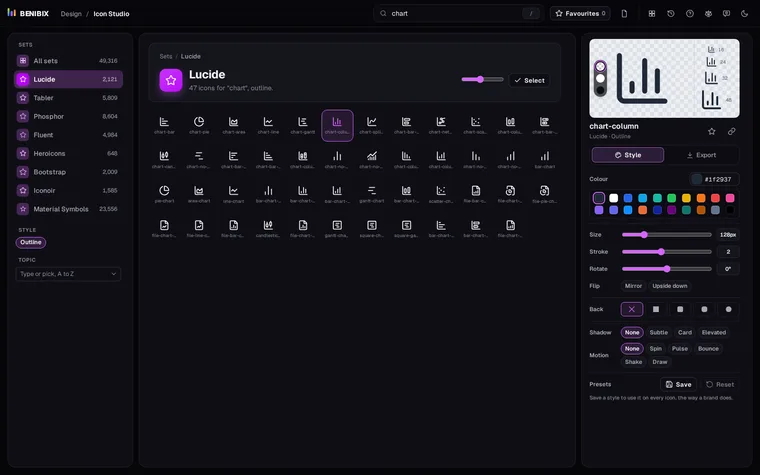
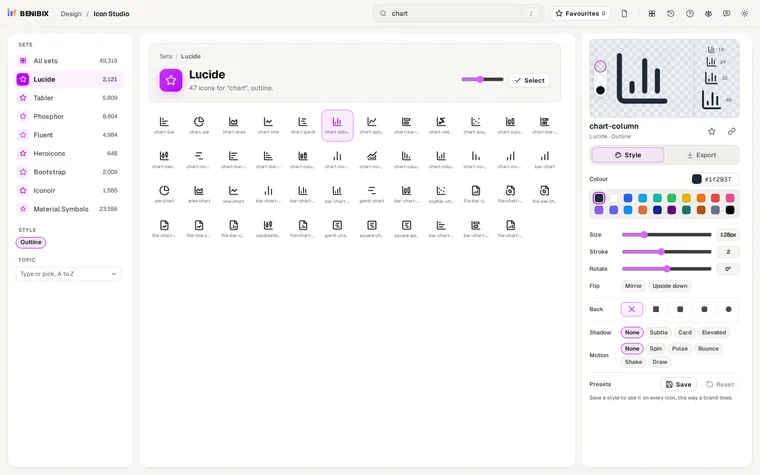
Icon Studio writes the component for you: pick an icon from eight open-source sets, open Export, and the React tab has it ready to copy, named after the icon, with its props passed to the <svg>. It carries the colour you set in Style; swap it for currentColor if the icon should follow the text. To take many at once, select them and download a sprite, which keeps currentColor for you. Every set is under the MIT, ISC or Apache 2.0 licence, so keep the licence file with your project and you are done.