Short answer: The typing effect is an animated SVG file shown with an <img> tag. Save the SVG in your profile repository (for example profile-assets/typing.svg), with the font embedded inside it, and add <img src="profile-assets/typing.svg" alt="Hi, I'm Sam. Backend developer."> to your README. GitHub shows it like any image, and the animation plays.
Most guides send you to a public service that draws the SVG from a URL. That works until the service is slow, rate-limited or gone, and then the first thing visitors see on your profile is a broken image. The file is small, so it can live in your own repository.
How does a typing animation work in a README?
GitHub does not run scripts in a README, so the animation cannot be JavaScript. It is an SVG image that animates itself: the text is in the file, and a timed reveal (a mask that widens step by step, letter by letter) makes it look typed. A blinking bar for the cursor and a pause before the next line complete the effect.
Two rules come from how browsers treat an SVG shown as an image. MDN lists them:
- "JavaScript is disabled."
- "External resources (e.g., images, stylesheets) cannot be loaded, though they can be used if inlined through
data:URLs."
So the SVG cannot fetch a web font. Either the font is embedded in the file as a data: URL, or the text falls back to whatever font the visitor's computer has, and every letter lands in a slightly different place than the animation expects.
How do you add it to your profile?
Your profile README is the README.md in the root of a public repository named exactly like your username (sam/sam). Put the SVG in that repository and point at it with a relative path; GitHub's docs say "You can define relative links and image paths in your rendered files":
<p align="center">
  <img src="profile-assets/typing.svg" alt="Hi, I'm Sam. Backend developer. Go, Postgres and too much coffee.">
</p>- The
alttext is what screen readers read and what shows if the image fails: put the lines of the animation in it. align="center"on the paragraph centres it; GitHub removesstyleattributes, so CSS cannot. How to centre an image or text in a GitHub README has the details.- Width: set
widthon the<img>if the SVG is wider than you want; the height follows.
How do you make it look right in light and dark mode?
An SVG drawn in dark blue on a transparent background disappears for dark-mode visitors. Make two files, one coloured for each theme, and let GitHub pick:
<picture>
  <source media="(prefers-color-scheme: dark)" srcset="profile-assets/typing-dark.svg">
  <img src="profile-assets/typing-light.svg" alt="Hi, I'm Sam. Backend developer.">
</picture>Dark mode images in a GitHub README explains the <picture> switch.
What should the lines say?
Three or four short lines, each one a thing a visitor wants to know, read one after another:
| Line | Example |
|---|---|
| Who | "Hi, I'm Sam" |
| What you do | "Backend developer at a fintech" |
| What you use | "Go, Postgres, Kubernetes" |
| What you want | "Open to remote roles" |
Keep each line under about 40 characters, so it fits the width without shrinking, and leave a pause of about a second before the next one. A typing line is decoration around the facts, not a replacement for them: the same facts belong in plain text below it, where search engines and screen readers find them.
Why does my typing animation not show?
- A broken image. The path is wrong (it is case-sensitive), the file is not committed, or the public service you linked is down. Open the image's address on its own to see which.
- Wrong font or overlapping letters. The font is not embedded, so the visitor's own font is used.
- It shows in the file view but not on your profile. The repository is private, or its name does not match your username exactly.
- It does not move. Open the SVG file on its own in a browser tab. If it does not animate there either, the animation is missing from the file, not blocked by GitHub.
Where can you check this?
- MDN: SVG as an image (scripts and external resources)
- GitHub Docs: about READMEs (relative links and image paths)
- GitHub Docs: managing your profile README
Can you make one without drawing the SVG?
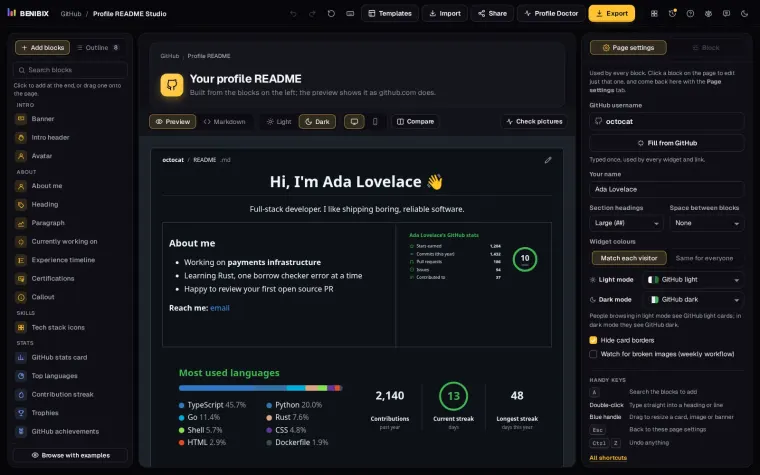
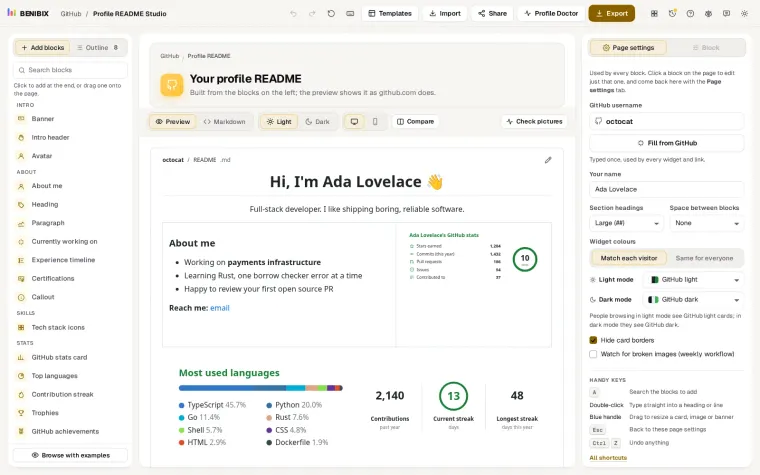
Profile README Studio draws the typing animation for you: write the lines in the header block, turn on typing, and pick a font and a theme. It writes the SVG with the font embedded into a profile-assets folder for your profile repository, a light and a dark file when your theme needs both, so nothing on your profile depends on an outside server. The pixel-accurate preview plays it before you copy anything.