Short answer: your settings live in ~/.codex/config.toml. A trusted project's .codex/config.toml beats it, a profile chosen with --profile sits between the two, and a -c override or flag on the command line beats them all. Admin requirements in requirements.toml limit every layer.
You set a model in config.toml, start Codex in a repository, and it uses another one. Nothing is broken: another layer set the same key. Codex merges several layers in a fixed order, and the closest one to "this run, in this folder" wins.
This post walks through each layer, where it lives and how to tell which value is in effect. Everything here is what Config Studio for Codex checks against Codex 0.162.1 and the Codex documentation.
Where is the Codex config file?
| Layer | Where | Who it is for |
|---|---|---|
| Your config | ~/.codex/config.toml | You, in every project |
| Project config | .codex/config.toml in the repository | Everyone who trusts the project |
| Profile | ~/.codex/<name>.config.toml, chosen with --profile <name> | A named set of values for some runs |
| Command line | -c key=value and flags like --model | One run |
| Requirements | /etc/codex/requirements.toml | Administrators |
~/.codex is the default home. Set the CODEX_HOME environment variable and Codex reads the whole folder from there instead. On Windows the admin file is %ProgramData%\OpenAI\Codex\requirements.toml.
In what order do they apply?
From highest to lowest:
-coverrides and flags for this run.- Project config files, from the repository root down to your working folder. The closest one wins, and they load only when you trust the project.
- The profile you chose with
--profile. - Your
~/.codex/config.toml. - Cloud-managed defaults, the system
/etc/codex/config.toml, then Codex's built-in defaults.
Requirements are different. They do not set a value; they allow some values and refuse the rest. If a layer asks for something the requirements refuse, Codex falls back to an allowed value and tells you.
Why is my project config ignored?
Codex reads a project's .codex/ folder only when you trust the project. Codex asks the first time you open a folder, and records the answer in your own config:
[projects."/home/you/code/shop-api"]
trust_level = "trusted"Mark a project untrusted and Codex skips its .codex/config.toml, its hooks and its rules. That is also the replacement for the retired approval_policy = "untrusted": remove that line and mark the project untrusted instead.
How do profiles work now?
Profiles are files. Since Codex 0.134.0, --profile deep-review lays ~/.codex/deep-review.config.toml over your config, and a [profiles.deep-review] table inside config.toml is no longer read. Put only the values that differ in the profile file:
# ~/.codex/deep-review.config.toml
model_reasoning_effort = "high"
sandbox_mode = "read-only"Run it with codex --profile deep-review, or codex exec --profile deep-review in a script.
What does that look like in practice?
Say three layers set the model:
# ~/.codex/config.toml
model = "gpt-6-sol"

# .codex/config.toml in a trusted project
model = "gpt-6.1-sol"In that project Codex uses gpt-6.1-sol; everywhere else, gpt-6-sol. Run codex -c model="gpt-6-luna" and that one run uses Luna, because the command line is above both files.
One more trap: in TOML, every top-level key has to come before the first [table]. A model = "..." line added at the end of a file, below [mcp_servers.docs], quietly becomes a setting of that server instead.
Where can you check this?
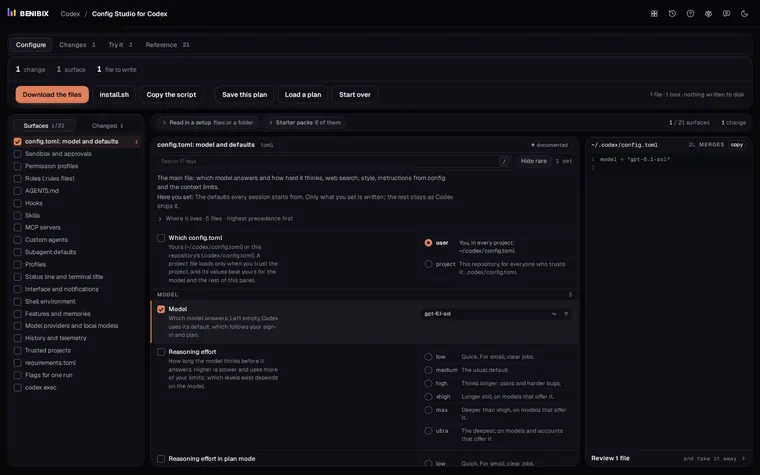
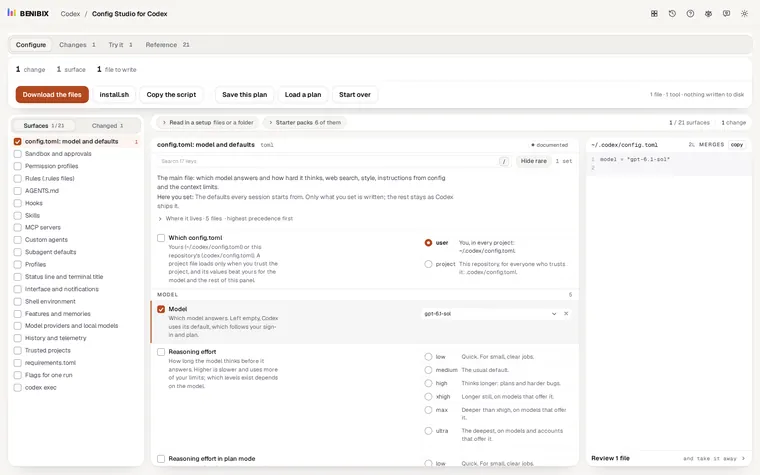
How do I see which file a setting comes from?
Config Studio for Codex shows, for each surface, every place Codex reads it from, highest first. Read in your ~/.codex folder and a repository's .codex folder, and the editors open what both set, showing the project's value wherever both set one, since that is what Codex uses there. You set what you want and see the exact file it would write. Several surfaces that write config.toml come out as one valid file, with every key in the right table. The install script merges it into the config.toml you already have and keeps your trusted projects. It runs in your browser and writes nothing to your disk until you run the script yourself.