Short answer: On 9 July 2026 the Codex app became part of the ChatGPT desktop app on macOS and Windows. You no longer download a separate Codex app: install or update ChatGPT for desktop and open Codex there. Existing Codex app users update as usual and keep their projects, settings and workflows. You can make Codex the default view, and on macOS keep the Codex app icon.
If you search for "Codex app download" today, you land on old pages and older videos that show a standalone app. It still exists in spirit, just inside another window: same coding view, same projects, now next to ChatGPT's chats.
Checked against OpenAI's Codex changelog and the ChatGPT desktop app docs on 23 November 2026.
What exactly changed on 9 July?
OpenAI's changelog entry, version 26.707, is titled "Codex joins the ChatGPT desktop app". It says three things that matter to you:
- Codex is now part of the ChatGPT desktop app on macOS and Windows.
- Existing Codex app users can update as usual and keep their projects, settings and workflows.
- You can make Codex the default view and, on macOS, keep the Codex app icon.
The same release added editing Markdown and code directly in the app, inline annotations, and PR Chat for reviewing GitHub pull requests with Codex.
How do you get it now?
- Download the ChatGPT desktop app from OpenAI's app page. Today that page offers it for macOS, Windows and Linux.
- Sign in with your ChatGPT account.
- Open Codex from the app and pick a project folder.
- If Codex is what you open the app for, set it as the default view.
Already had the Codex app? Do nothing special: the normal update brings you into the combined app with your projects where you left them.
Which plans can use it?
Codex in the desktop app is not limited to paid plans, but the bigger models are. OpenAI's changelog notes that Free and Go users can use GPT-6 Luna in the desktop app, while its models page lists GPT-6.2 Sol and Astra for supported paid plans (Plus, Pro, Business, Enterprise and Edu). Enterprise and Edu administrators may have to switch a model on first.
Do the app, the CLI and the IDE extension share settings?
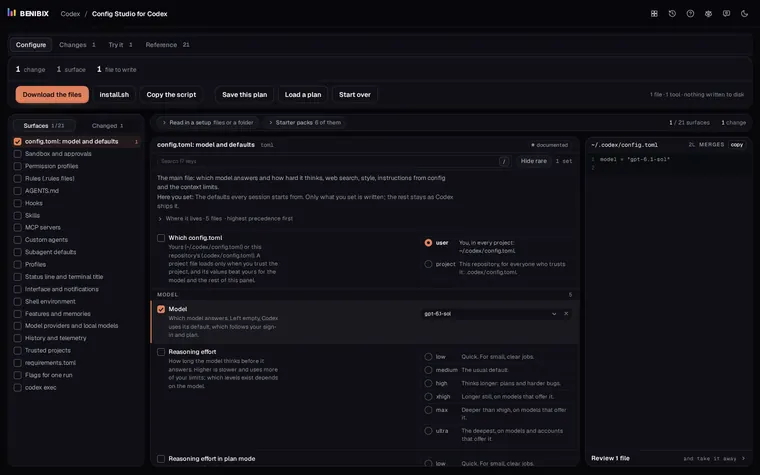
Yes, and this is the part that saves time. OpenAI's MCP docs say it in one line: the ChatGPT desktop app, the Codex CLI and the IDE extension share this configuration, by default ~/.codex/config.toml. An MCP server, a default model or a sandbox setting you put there once is there in all three:
model = "gpt-6.2-sol"

[mcp_servers.context7]
command = "npx"
args = ["-y", "@upstash/context7-mcp"]The same goes for your AGENTS.md files and skills in .agents/skills: they belong to the project, not to the window you open it in.
Where can you check this?
- Codex changelog, the 9 July 2026 entry "Codex joins the ChatGPT desktop app" and the Free and Go note on Luna
- ChatGPT desktop app, downloads and the quickstart
- Codex docs: MCP, servers in config.toml shared by the CLI, the IDE extension and the app
- Codex docs: Models, which models each plan gets
Can you write that config.toml without looking up every key?
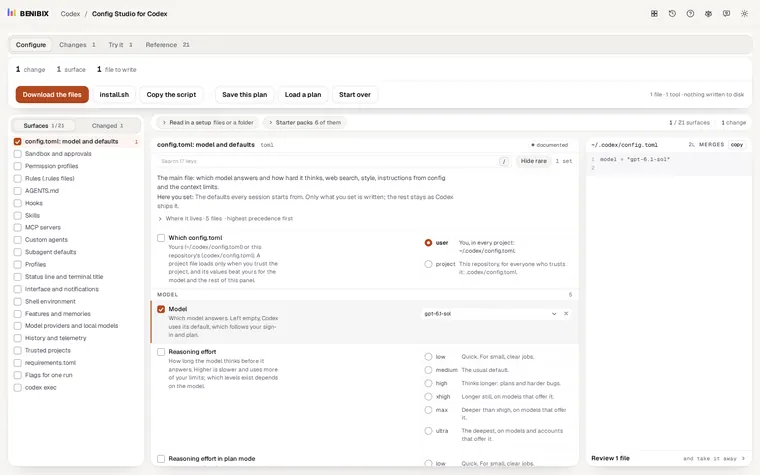
Yes. Config Studio for Codex explains every file Codex reads (config.toml, sandbox and approvals, AGENTS.md, rules, hooks, skills, MCP servers) and writes the TOML for you, so the setup you make once follows you from the app to the terminal. For the server part, How to add an MCP server to Codex has the commands.