Short answer: create a public repository named exactly like your GitHub username and add a README.md at its root. GitHub shows that file at the top of your profile page.
The profile README is the first thing people see when they open your GitHub profile: a block of Markdown at the top of the page, above your pinned repositories. It takes two minutes to create and much longer to make good, so here is both.
How do you create one?
- Create a public repository with exactly your username as its name. The user octocat would create
octocat/octocat. GitHub recognises the special name and says so when you create it. - Add a
README.mdat its root. GitHub shows that file at the top of your profile page.
That is all. Edit the file, commit, and the profile updates.
For an organization it works a little differently: the README lives in the organization's public .github repository, in the file profile/README.md.
What should you put in it?
A good profile answers three questions in the first screen: who you are, what you work on, and how to reach you. Everything else is extra.
- An intro. One heading and a sentence or two. "Backend engineer in Vienna. I build fast APIs and small tools." beats a paragraph.
- What you are working on. A line or two, with links to the repositories.
- Your stack. A short row of badges or icons, not a wall of them.
- How to reach you. A few links: your site, email, one or two social profiles.
- Optionally, cards. Stats, top languages, a contribution streak. They are images drawn by outside services, which brings its own problems (see below).
How do you make it work in light and dark mode?
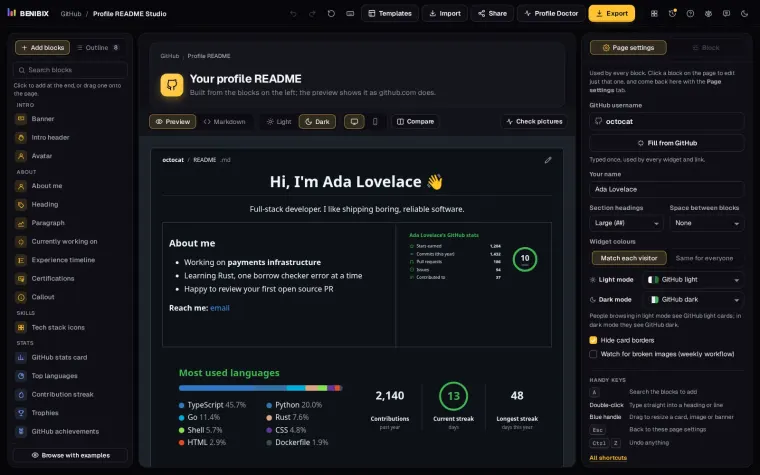
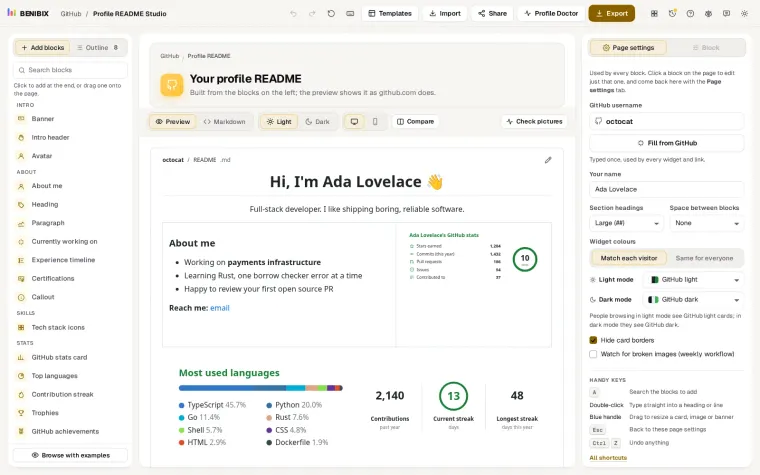
Half your visitors browse GitHub in dark mode. An image made for a white background looks broken on a dark one. The fix is a <picture> element with a dark source:
<picture>
  <source media="(prefers-color-scheme: dark)" srcset="card-dark.svg">
  <img alt="GitHub stats" src="card-light.svg">
</picture>GitHub picks the right image for each visitor. Always keep the alt text: it is what screen readers read, and what shows when an image fails to load.
How do you keep it fast and readable?
- Mind the widgets. Every card is a request to someone else's server. If a card takes seconds to load, or fails, your profile looks broken. More in Why GitHub stats cards stop loading.
- Avoid badge walls. Forty badges say less than six.
- Check it on a phone. Wide tables and side-by-side images wrap badly on small screens.
Where can you check this?
Can you build one without hand-writing Markdown?
Profile README Studio builds the README from blocks in your browser. There are 31 layouts to start from, 45 block types, a preview that uses GitHub's own styles in light and dark, and every badge, icon and card drawn by the studio itself, so none depends on another server. It can import the README you already have, and it links you straight to the right GitHub page to create or edit it.
To go further, the free Profile README Studio course takes you from an empty profile to stats cards that never break, GitHub Actions automation and an organization profile, in 12 short lessons. For the light and dark details, read dark mode images in a GitHub README; for a company or project, the organization profile README.